
Let planning and calendar work together.
bsmartr puts the work, the travel time and everything the engineer needs straight into their calendar. With Microsoft 365, Outlook.com or Google Calendar.
Everything in one appointment.
A planned task appears in the calendar with the project, customer, address and work details. At the bottom are buttons: Log hours, Report back afterwards and, for on-site work, Navigate with Google Maps or Apple Maps. If the engineer moves the appointment in Outlook, the plan picks that up automatically. Leave, public holidays and free/busy sync too.
See bsmartr in a demo →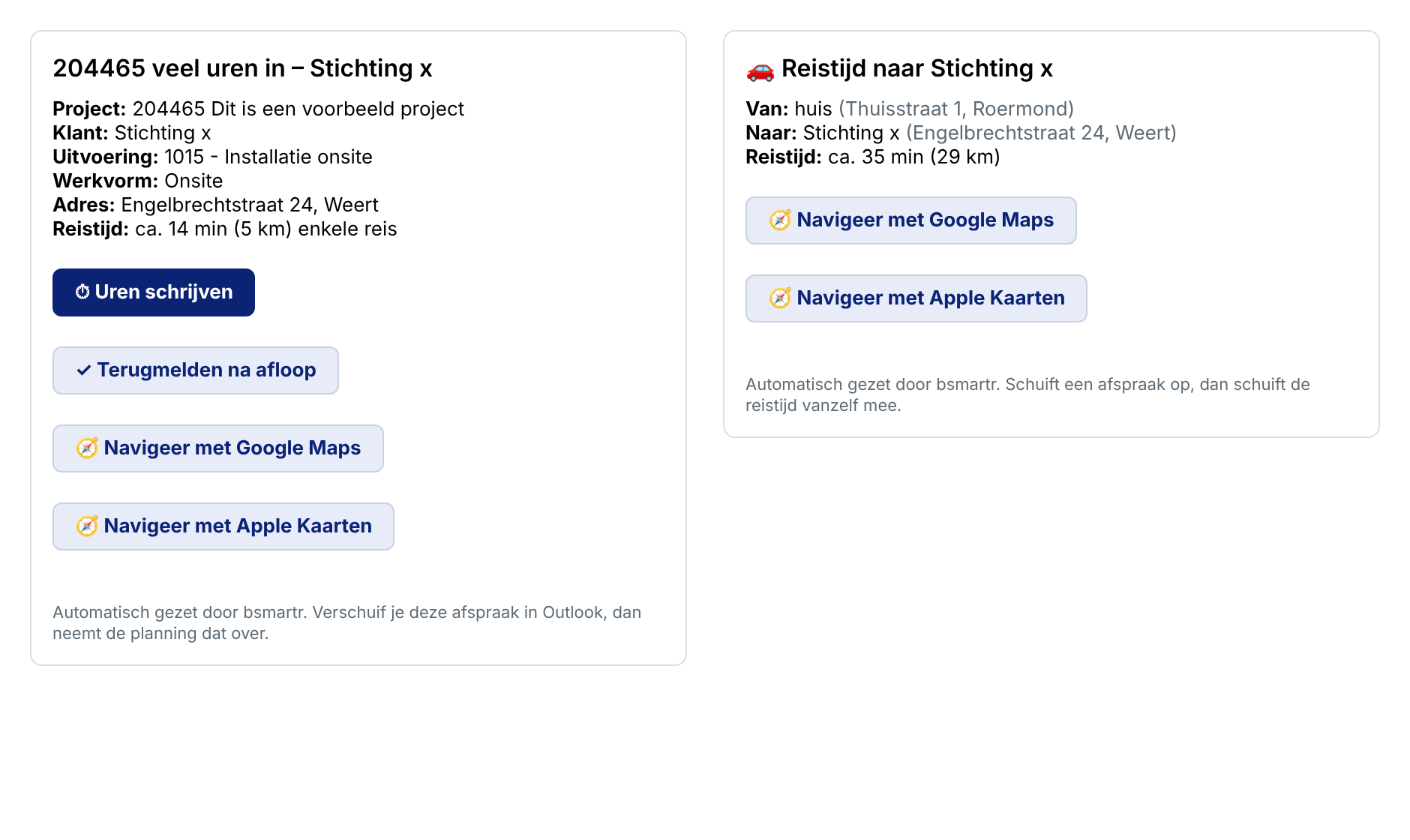
On time at the customer.
For on-site work, bsmartr adds the travel time to the calendar as a separate appointment: from home to the first customer, between customers and back home. If an appointment moves, the travel time moves with it. In the travel time appointment, a single tap starts navigation.
With the Traffic alerts module, bsmartr checks today’s travel time between 6:00 and 18:00 against current traffic information. If the delay is 10 minutes or more, the journey starts earlier, the traffic jam is shown in the subject and the engineer gets a reminder. Once the jam has cleared, everything reverts automatically.

Done? One tap.
Afterwards, the engineer taps Report back in the appointment. A small window opens: Done saves immediately and the window closes by itself. Not finished, or needs rescheduling? Then they also enter how many hours are needed and when. The planner sees it straight away on their home screen.

Log time without switching apps.
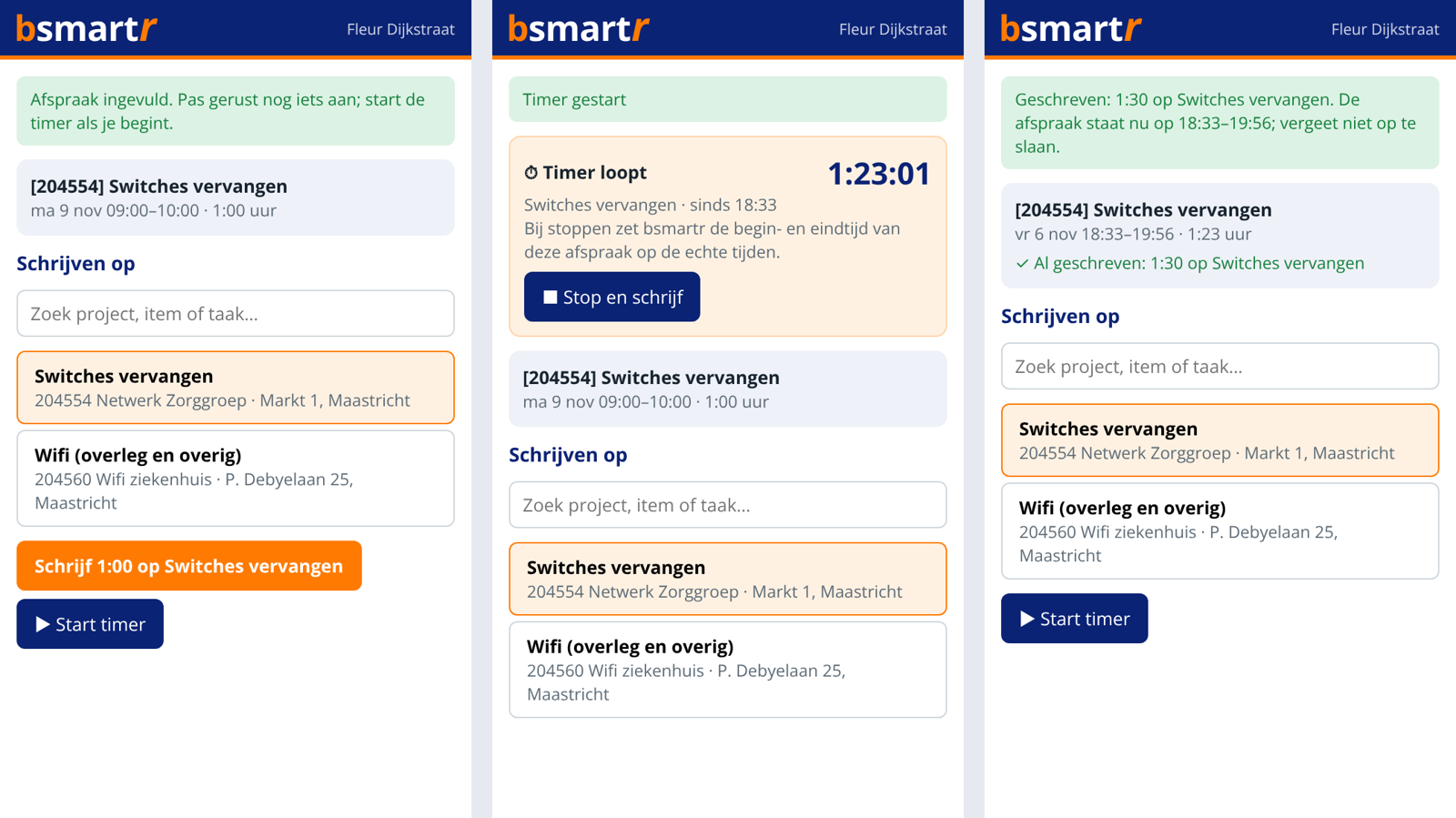
With the Outlook add-in bsmartr uren, an engineer logs the time of an appointment to the right project in one click, or starts a timer.
When you create a new appointment, Outlook asks straight away: Log hours with bsmartr? Choose the project or task and bsmartr fills in the subject, location and text. Start the timer when you begin; on Stop, bsmartr records the actual start and end times in the appointment and logs the hours immediately. You can pin the pane.
The administrator rolls out the add-in for the whole organisation in one go; each employee creates their own key via the menu in the top right.
Also Teams, TOPdesk
and Exact Online.
View all bsmartr integrations.